> ## Documentation Index
> Fetch the complete documentation index at: https://docs.dexpaprika.com/llms.txt
> Use this file to discover all available pages before exploring further.
# Integrating Documentation with Cursor IDE
> Learn how to integrate DexPaprika documentation and MCP server directly into Cursor IDE for enhanced development workflows with real-time crypto data access.
## Integration overview
Connect Cursor IDE to DexPaprika via the hosted MCP server and add docs for rich AI context.
## What is Cursor IDE?
Cursor is a powerful AI-first code editor built on top of VS Code that provides advanced AI assistance for developers. With its built-in Claude integration and MCP (Model Context Protocol) support, Cursor can access external data sources and documentation to provide more intelligent coding assistance.
## Why integrate DexPaprika with Cursor?
Integrating DexPaprika documentation and data with Cursor IDE provides several powerful benefits:
* **Real-time crypto data access** - Get live market data, pool information, and token prices while coding
* **Enhanced AI assistance** - Cursor's AI can reference DexPaprika documentation and data for better code suggestions
* **DeFi development workflow** - Build DeFi applications with direct access to comprehensive blockchain data
* **Documentation context** - AI can reference our API docs, tutorials, and examples while helping you code
***
## Step 1: Install MCP server with one click
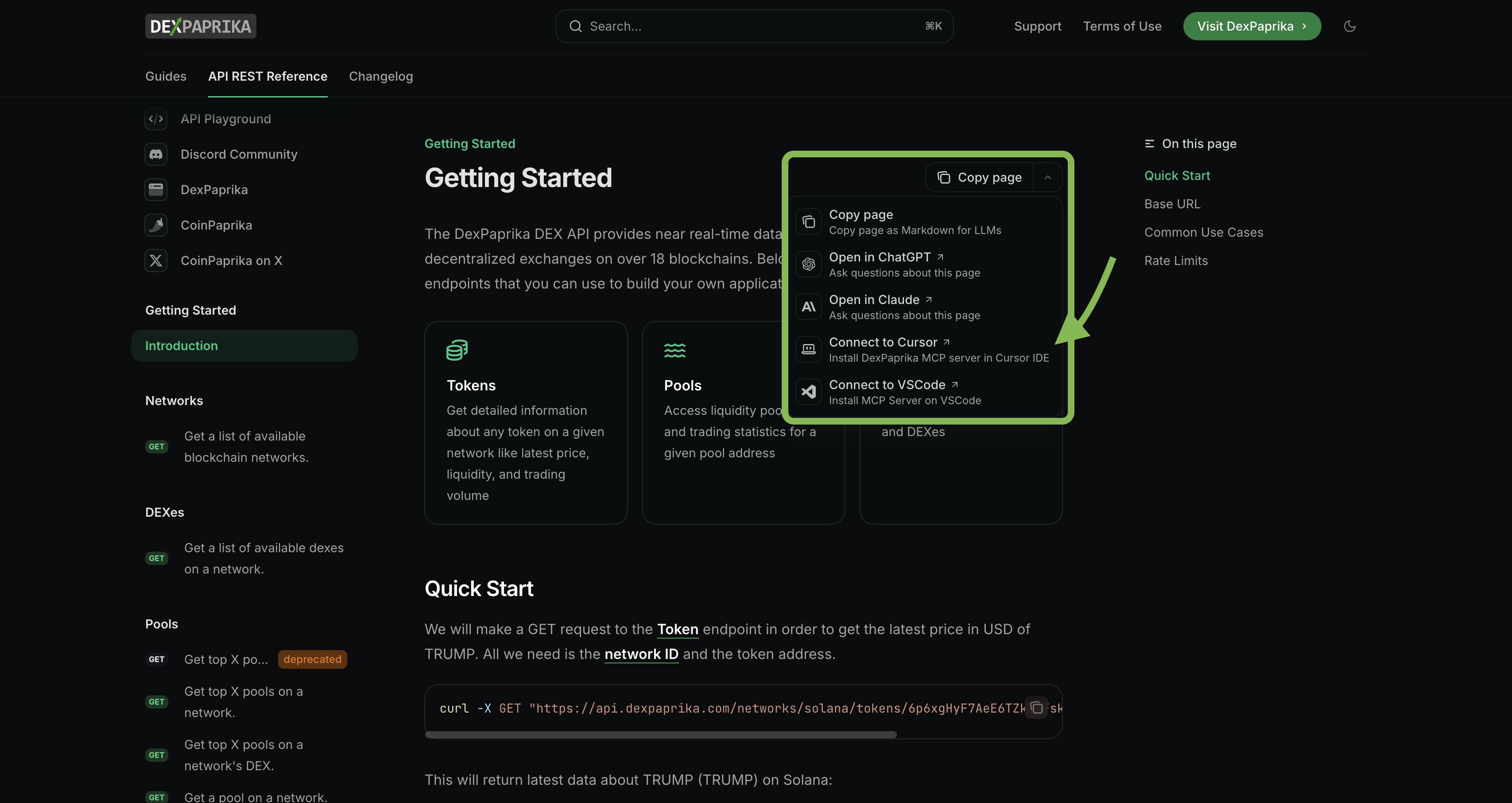
The easiest way to get started is using our "Connect to Cursor" button that opens Cursor IDE for MCP server installation.
1. Look for the **"Connect to Cursor"** button in our documentation
2. This button is available on relevant pages throughout our docs
3. Click the button to open Cursor IDE
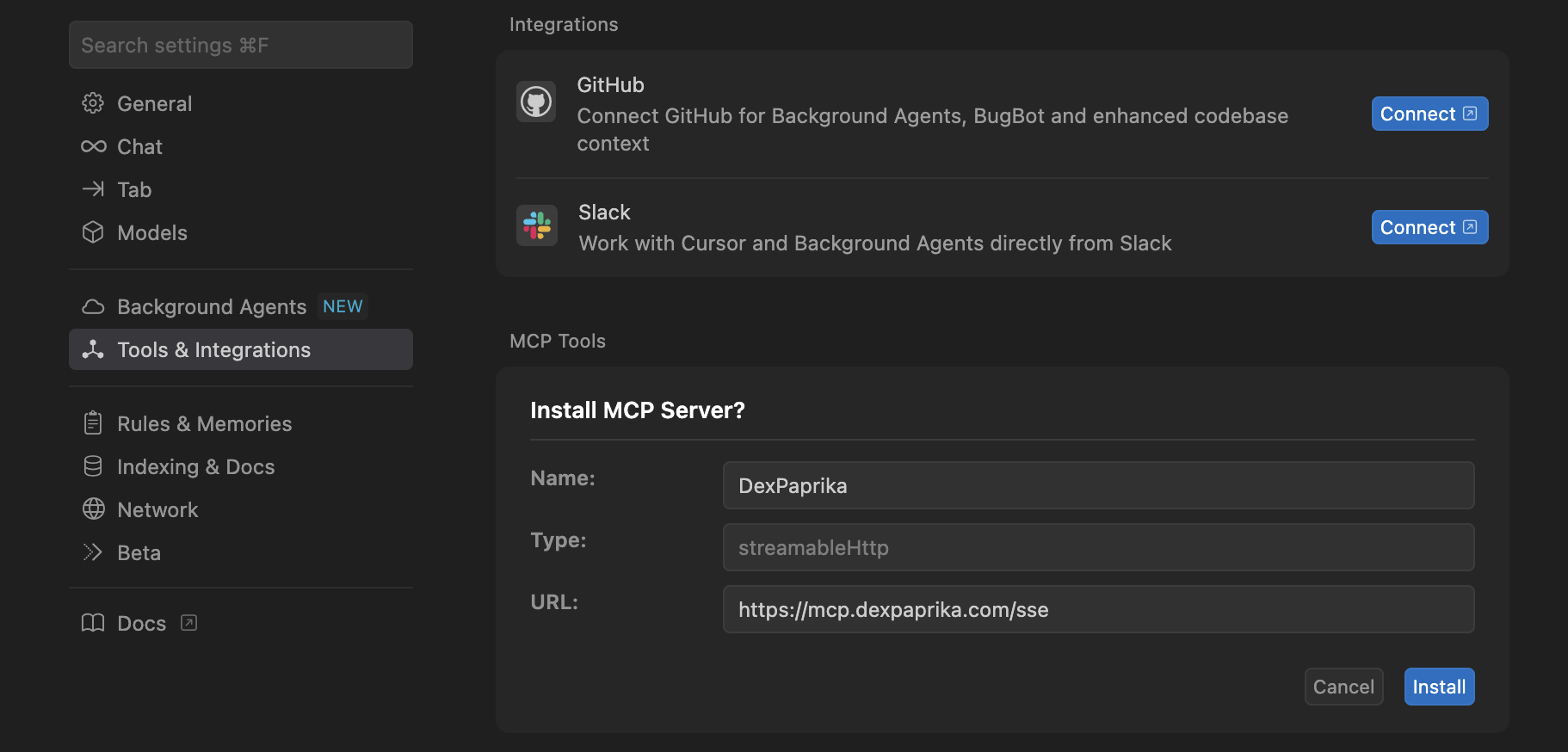
 1. The button will open Cursor IDE (if not already open)
2. In the MCP server configuration dialog, enter the DexPaprika MCP server URL:
```
https://mcp.dexpaprika.com/sse
```
3. Click "Install" to complete the setup
4. Restart Cursor if prompted to complete the setup
1. The button will open Cursor IDE (if not already open)
2. In the MCP server configuration dialog, enter the DexPaprika MCP server URL:
```
https://mcp.dexpaprika.com/sse
```
3. Click "Install" to complete the setup
4. Restart Cursor if prompted to complete the setup
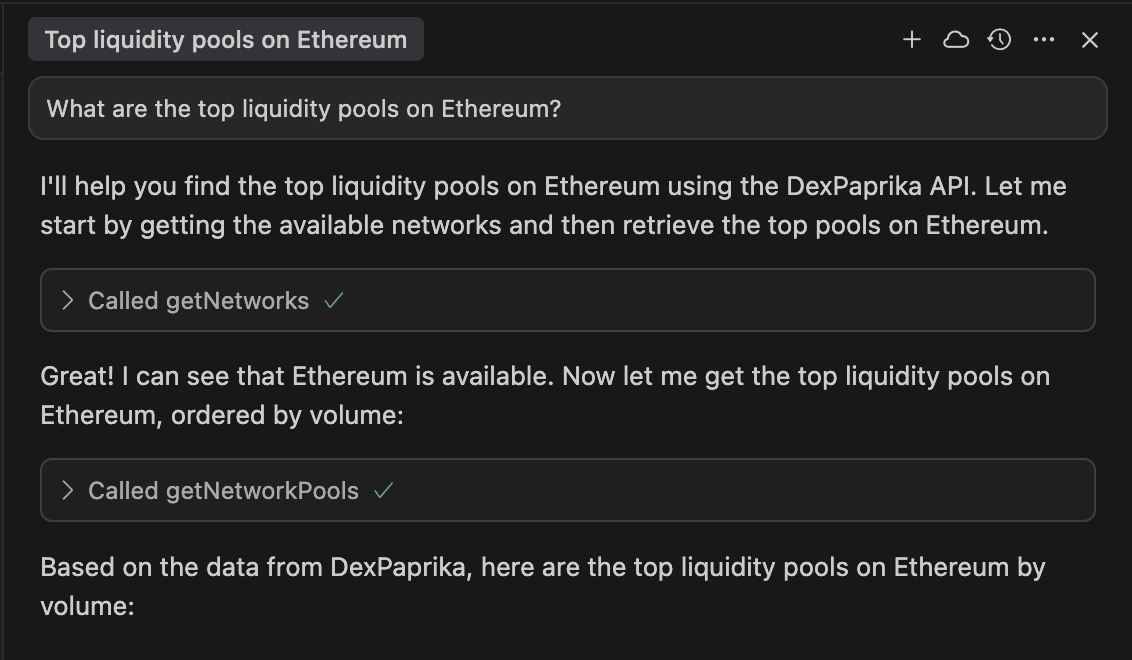
 1. Open a new chat with Claude in Cursor (Cmd/Ctrl + L)
2. Ask a question like: "What are the top liquidity pools on Ethereum?"
3. You should see DexPaprika data being retrieved and displayed
4. Try asking about specific networks, tokens, or pools to test the integration
1. Open a new chat with Claude in Cursor (Cmd/Ctrl + L)
2. Ask a question like: "What are the top liquidity pools on Ethereum?"
3. You should see DexPaprika data being retrieved and displayed
4. Try asking about specific networks, tokens, or pools to test the integration
 **Can't find the button?** The "Connect to Cursor" button appears on pages where MCP integration is relevant. If you don't see it, you can also manually configure the MCP server using the method below.
## Step 2: Add documentation context
Once you have the MCP server installed, enhance your development experience by adding our documentation to your Cursor workspace for full API reference indexing.
1. In Cursor, go to **Settings** (Cmd/Ctrl + ,)
2. Navigate to **Indexing & Docs** in the left sidebar
3. This section allows you to add custom documentation for AI context
**Can't find the button?** The "Connect to Cursor" button appears on pages where MCP integration is relevant. If you don't see it, you can also manually configure the MCP server using the method below.
## Step 2: Add documentation context
Once you have the MCP server installed, enhance your development experience by adding our documentation to your Cursor workspace for full API reference indexing.
1. In Cursor, go to **Settings** (Cmd/Ctrl + ,)
2. Navigate to **Indexing & Docs** in the left sidebar
3. This section allows you to add custom documentation for AI context
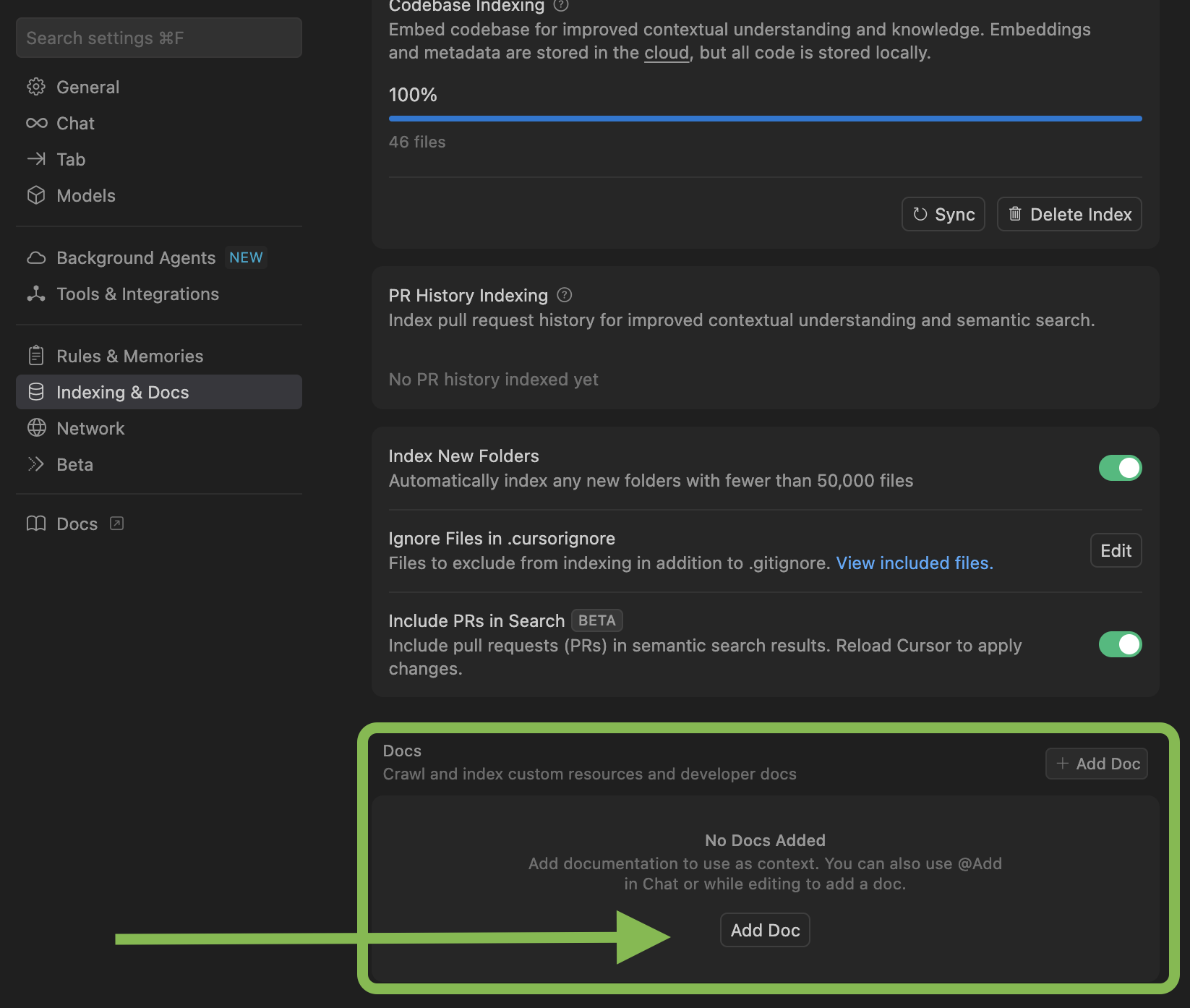 1. In the **Docs** section, click **"+ Add Doc"**
2. Fill out the documentation details:
* **Name**: "DexPaprika API Reference"
* **URL**: [https://docs.dexpaprika.com/api-reference/introduction](https://docs.dexpaprika.com/api-reference/introduction)
3. Click **"Add"** to complete the setup
4. This will index our full API reference for AI context
1. In the **Docs** section, click **"+ Add Doc"**
2. Fill out the documentation details:
* **Name**: "DexPaprika API Reference"
* **URL**: [https://docs.dexpaprika.com/api-reference/introduction](https://docs.dexpaprika.com/api-reference/introduction)
3. Click **"Add"** to complete the setup
4. This will index our full API reference for AI context
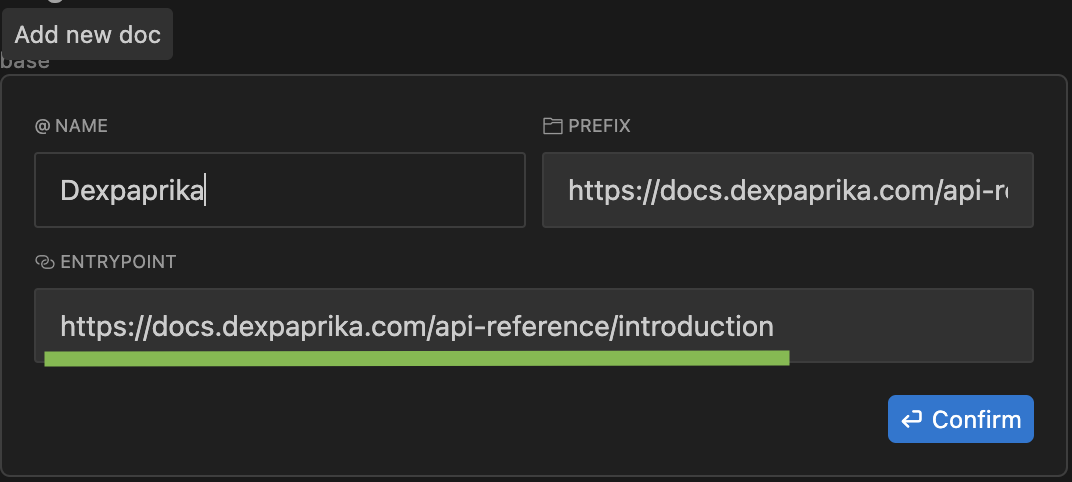 **Pro tip:** Using the URL [https://docs.dexpaprika.com/api-reference/introduction](https://docs.dexpaprika.com/api-reference/introduction) ensures Cursor indexes our complete API reference, giving you access to all endpoints, parameters, and examples in your AI conversations.
## Manual MCP server configuration
If you can't find the "Connect to Cursor" button or prefer manual setup, you can configure the MCP server manually by following our [hosted MCP server guide](/ai-integration/hosted-mcp-server).
**Need help with manual setup?** Our hosted MCP server guide provides detailed instructions for configuring the DexPaprika MCP server in Cursor, Claude Desktop, and other MCP-compatible tools.
***
## Available features
Once integrated, you can access comprehensive DexPaprika functionality within Cursor:
### Real-time data access
* **Network information** - Get details about supported blockchain networks
* **DEX data** - Access decentralized exchange information and metrics
* **Pool analytics** - Real-time liquidity pool data, volumes, and fees
* **Token information** - Current prices, market data, and token details
* **Search functionality** - Find tokens, pools, and DEXes across networks
### Documentation context
* **API reference** - Complete endpoint documentation and examples
* **SDK guides** - Language-specific integration tutorials
* **Best practices** - Coding patterns and optimization tips
* **Troubleshooting** - Common issues and solutions
***
## Usage examples
### Example 1: Building a DeFi dashboard
Ask Cursor to help you build a DeFi dashboard with real-time data:
```
"Help me create a React component that displays the top 5 liquidity pools
on Ethereum using the DexPaprika API. Include volume, TVL, and price data."
```
Cursor can now:
* Reference our API documentation for correct endpoint usage
* Provide real-time pool data for testing
* Suggest optimal data fetching patterns
* Help with error handling and loading states
### Example 2: Token price monitoring
Create a price monitoring application:
```
"Build a Python script that monitors SOL token prices across different
DEXes and alerts when there are significant price differences."
```
Cursor can:
* Access real-time SOL price data from multiple DEXes
* Reference our historical data tutorials
* Suggest efficient polling strategies
* Help implement price comparison logic
### Example 3: Pool discovery bot
Develop a new pool discovery system:
```
"Create a Node.js application that finds newly created liquidity pools
with high trading volume and sends notifications."
```
Cursor can:
* Use our pool discovery endpoints
* Reference our "Find New Pools" tutorial
* Provide real-time pool data for testing
* Help with notification system implementation
***
***
## Troubleshooting
**Symptoms**: Cursor shows connection errors or timeouts.
**Solutions**:
1. Verify internet connection is stable
2. Check that the MCP server URL is correct: `https://mcp.dexpaprika.com/sse`
3. Restart Cursor completely
4. Try removing and re-adding the MCP server configuration
5. Check Cursor's console for detailed error messages
**Symptoms**: Cursor's AI doesn't reference DexPaprika documentation.
**Solutions**:
1. Ensure documentation files are in your workspace
2. Enable "Use workspace files as context" in AI settings
3. Try asking more specific questions about our API
4. Restart Cursor to refresh context
**Symptoms**: Cursor takes a long time to respond with DexPaprika data.
**Solutions**:
1. Check your internet connection speed
2. Try breaking complex queries into smaller parts
3. Use specific network/token names in your queries
4. Consider using the hosted MCP server for better performance
**Symptoms**: Getting authentication or permission errors.
**Solutions**:
1. DexPaprika API is publicly accessible - no authentication required
2. Check if your network has firewall restrictions
3. Try using the hosted MCP server instead of local installation
4. Contact support if issues persist
***
## Best practices
### For optimal performance
1. **Use specific queries** - Instead of "show me all pools", ask for "top 5 USDC/ETH pools on Ethereum"
2. **Cache frequently used data** - Store common queries locally to reduce API calls
3. **Handle errors gracefully** - Implement proper error handling for network issues
4. **Monitor rate limits** - Be mindful of API usage patterns
### For better AI assistance
1. **Provide context** - Tell Cursor what you're building and your goals
2. **Reference documentation** - Ask Cursor to explain concepts from our docs
3. **Iterate on solutions** - Ask follow-up questions to refine the code
4. **Test with real data** - Use actual DexPaprika data in your development
***
## What's next?
Explore all available endpoints and their capabilities
Learn how to use our official SDKs in your projects
Discover newly created liquidity pools and tokens
Access and analyze historical price and volume data
Zero-setup MCP integration for instant access
Integrate DexPaprika data with ChatGPT
## Need Help?
Connect with our community for real-time support and discussions
Contact our team for technical assistance and custom integrations
**Building something amazing?** Share your Cursor + DexPaprika integrations with our community! We love seeing what developers build with our tools. [Reach out](mailto:support@coinpaprika.com) to showcase your work.
### FAQs
Manually add `https://mcp.dexpaprika.com/sse` via Cursor settings → Tools & Integrations → New MCP server.
Add [https://docs.dexpaprika.com/api-reference/introduction](https://docs.dexpaprika.com/api-reference/introduction) under Indexing & Docs and enable workspace context.
Restart Cursor, re‑add the server, and verify the URL; check the developer console for detailed errors.
**Pro tip:** Using the URL [https://docs.dexpaprika.com/api-reference/introduction](https://docs.dexpaprika.com/api-reference/introduction) ensures Cursor indexes our complete API reference, giving you access to all endpoints, parameters, and examples in your AI conversations.
## Manual MCP server configuration
If you can't find the "Connect to Cursor" button or prefer manual setup, you can configure the MCP server manually by following our [hosted MCP server guide](/ai-integration/hosted-mcp-server).
**Need help with manual setup?** Our hosted MCP server guide provides detailed instructions for configuring the DexPaprika MCP server in Cursor, Claude Desktop, and other MCP-compatible tools.
***
## Available features
Once integrated, you can access comprehensive DexPaprika functionality within Cursor:
### Real-time data access
* **Network information** - Get details about supported blockchain networks
* **DEX data** - Access decentralized exchange information and metrics
* **Pool analytics** - Real-time liquidity pool data, volumes, and fees
* **Token information** - Current prices, market data, and token details
* **Search functionality** - Find tokens, pools, and DEXes across networks
### Documentation context
* **API reference** - Complete endpoint documentation and examples
* **SDK guides** - Language-specific integration tutorials
* **Best practices** - Coding patterns and optimization tips
* **Troubleshooting** - Common issues and solutions
***
## Usage examples
### Example 1: Building a DeFi dashboard
Ask Cursor to help you build a DeFi dashboard with real-time data:
```
"Help me create a React component that displays the top 5 liquidity pools
on Ethereum using the DexPaprika API. Include volume, TVL, and price data."
```
Cursor can now:
* Reference our API documentation for correct endpoint usage
* Provide real-time pool data for testing
* Suggest optimal data fetching patterns
* Help with error handling and loading states
### Example 2: Token price monitoring
Create a price monitoring application:
```
"Build a Python script that monitors SOL token prices across different
DEXes and alerts when there are significant price differences."
```
Cursor can:
* Access real-time SOL price data from multiple DEXes
* Reference our historical data tutorials
* Suggest efficient polling strategies
* Help implement price comparison logic
### Example 3: Pool discovery bot
Develop a new pool discovery system:
```
"Create a Node.js application that finds newly created liquidity pools
with high trading volume and sends notifications."
```
Cursor can:
* Use our pool discovery endpoints
* Reference our "Find New Pools" tutorial
* Provide real-time pool data for testing
* Help with notification system implementation
***
***
## Troubleshooting
**Symptoms**: Cursor shows connection errors or timeouts.
**Solutions**:
1. Verify internet connection is stable
2. Check that the MCP server URL is correct: `https://mcp.dexpaprika.com/sse`
3. Restart Cursor completely
4. Try removing and re-adding the MCP server configuration
5. Check Cursor's console for detailed error messages
**Symptoms**: Cursor's AI doesn't reference DexPaprika documentation.
**Solutions**:
1. Ensure documentation files are in your workspace
2. Enable "Use workspace files as context" in AI settings
3. Try asking more specific questions about our API
4. Restart Cursor to refresh context
**Symptoms**: Cursor takes a long time to respond with DexPaprika data.
**Solutions**:
1. Check your internet connection speed
2. Try breaking complex queries into smaller parts
3. Use specific network/token names in your queries
4. Consider using the hosted MCP server for better performance
**Symptoms**: Getting authentication or permission errors.
**Solutions**:
1. DexPaprika API is publicly accessible - no authentication required
2. Check if your network has firewall restrictions
3. Try using the hosted MCP server instead of local installation
4. Contact support if issues persist
***
## Best practices
### For optimal performance
1. **Use specific queries** - Instead of "show me all pools", ask for "top 5 USDC/ETH pools on Ethereum"
2. **Cache frequently used data** - Store common queries locally to reduce API calls
3. **Handle errors gracefully** - Implement proper error handling for network issues
4. **Monitor rate limits** - Be mindful of API usage patterns
### For better AI assistance
1. **Provide context** - Tell Cursor what you're building and your goals
2. **Reference documentation** - Ask Cursor to explain concepts from our docs
3. **Iterate on solutions** - Ask follow-up questions to refine the code
4. **Test with real data** - Use actual DexPaprika data in your development
***
## What's next?
Explore all available endpoints and their capabilities
Learn how to use our official SDKs in your projects
Discover newly created liquidity pools and tokens
Access and analyze historical price and volume data
Zero-setup MCP integration for instant access
Integrate DexPaprika data with ChatGPT
## Need Help?
Connect with our community for real-time support and discussions
Contact our team for technical assistance and custom integrations
**Building something amazing?** Share your Cursor + DexPaprika integrations with our community! We love seeing what developers build with our tools. [Reach out](mailto:support@coinpaprika.com) to showcase your work.
### FAQs
Manually add `https://mcp.dexpaprika.com/sse` via Cursor settings → Tools & Integrations → New MCP server.
Add [https://docs.dexpaprika.com/api-reference/introduction](https://docs.dexpaprika.com/api-reference/introduction) under Indexing & Docs and enable workspace context.
Restart Cursor, re‑add the server, and verify the URL; check the developer console for detailed errors.